Sidebar
UVcWrap Plug-in
Summary: A free Rhino 4 plug-in to model with UV-texture coordinates and control mesh UV-mapping
Note: This is an experimental plug-in and it only gives you a mesh object as output. If RhinoScript someday provides better support to change texture coordinates of the render mesh of a NURBS object, I will rewrite this tool to support NURBS objects and meshes as output.
Note for Rhino 5: The plug-in will not work in Rhino 5. Use the built-in _Unwrap and _UVEditor commands to get the same functionality and much more.
What is UVcWrap ?
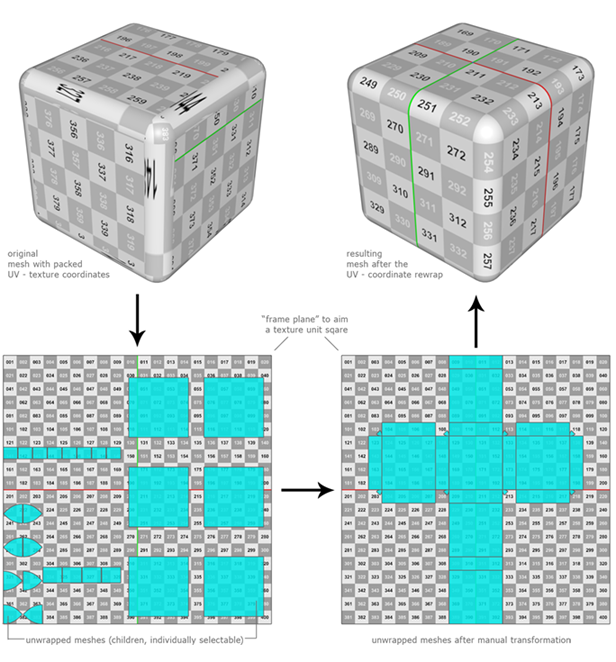
UVcWrap is a set of commands to create an unwrap from a mesh (or render mesh), transform the unwrap, and rewrap it to control UV-texture assignment.
Download
This software is provided as is. The author accepts no liability or responsibility for damages in any form, regardless of cause. By using this software, you agree to the terms stated here and within the accompanying documentation.
Download plug-in (version 21042009)
Example
Example object and some annotations to explain the UVcWrap workflow. You may need reassign the map paths if they are not found in the file search paths or if you cannot see the standard texture.
Requirements
To install the UVcWrap plug-in and tools, Rhino 4.0 SR4 is required.
The plug-in doesn't require any specific renderer or RDK installation. It should work with any renderer which uses Rhino's default material texture assignment. The mesh you unwrap should have a divided texture space or use Rhino's default packed texture coordinates.
Installation
Extract the contents of the UVcWrap.zip file anywhere. Make sure to preserve the folder structure and folder name.
1. Copy the plug-in file UVcWrap.rhp to the plug-ins folder
2. Open Rhino and install the UVcWrap.rhp plug-in
3. Set up a new file search path pointing to the UVcWrap folder
4. Load the display mode named UVcWrap.ini
5. Load the toolbar file named UVcWrap.tb
After installation, start to unwrap a mesh, e.g. a cube, using the UVcWrapCreate command. Or if a NURBS cube is selected, unwrap the render mesh of this NURBS object (original NURBS inputs will be hidden). Here is the list of all currently available commands:
Toolbar commands
UVcWrapCreate
UVcWrapApply
UVcWrapFind
UVcWrapGetParent
UVcWrapMapSize
UVcWrapToggleMap
UVcWrapSelect
UVcWrapHide
UVcWrapShow
UVcWrapDelete
UVcWrapDeleteAll
UVcWrapSavePositions
UVcWrapRestorePositions
UVcWrapAddCages
UVcWrapRemoveCages
Transformation commands
UVcWrapMove
UVcWrapMoveCenter
UVcWrapRotate
UVcWrapRotateCenter
UVcWrapScale
UVcwrapScaleCenter
UVcWrapScale1D
UVcWrapScaleNU
UVcWrapOrient
UVcWrapFlow
UVcWrapFlip
Below is a short description how to use each command. Most of the commands are scriptable:
UVcWrapCreate
Use: Unwraps a mesh or render mesh to the user definable frame plane. The frame plane is a single mesh quad positioned behind the unwrapped objects to show the assigned texture.
1. Select a mesh to unwrap.
2. Start the UVcWrapCreate command and draw a rectangle.
3. The mesh texture coordinates will be unwrapped into this rectangle (called frame plane).
4. You can now transform (move, rotate, scale) the single unwrapped meshes to control how the UV texture is applied.
To see the transformed result use:
UVcWrapApply
Use: After you´ve transformed some of your unwrapped meshes, use the UVcWrapApply command to apply the changes to the original mesh.
1. Start the UVcWrapApply command and click on the frame plane to apply from. If only one frame plane is in the document, it will not ask for a frame plane but will apply it immediately
2. Once the original mesh blinks, the texture coordinates have been applied.
UVcWrapFind
Use: Use this command to quickly find unwraps when it gets too complex, click in the middle of a mesh (sub)face of your original object.
1. Start the UVCwrapFind command and click on a mesh face of the original object.
2. The corresponding unwrapped (single) mesh will be selected.
UVcWrapGetParent
Use: Flashes the selection of a parent submesh if an unwrapped child mesh was selected.
1. Select an unwrapped single mesh child and start the UVcWrapGetParent command.
2. The corresponding sub mesh in the original mesh flashes three times to make it easier to find.
UVcWrapMapSize
Use: By default, if no texture is assigned to the mesh before unwrapping it, a standard texture with some numbers is applied. Use this command to change the map size of this standard texture.
1. Start the UVcWrapMapSize command.
2. Choose the desired map resolution from the command line.
UVcWrapToggleMap
Use: Toggle between the actual texture map and one of the included default maps. Note that you have to assign a texture to your mesh before unwrapping it to use this command.
1. Start the UVcWrapToggleMap command.
2. Display should now toggle between your map and the default map.
UVcWrapSelect
Use: Selects all selectable UVcWrap meshes in the document.
1. Start the UVcWrapSelect command.
2. All unwraps are selected.
UVcWrapHide, UVcWrapShow
Use: Hide and show UVcWrap meshes, frame planes, and associated control cages.
1. Start the UVcWrapHide or UVcWrapShow command.
2. Unwraps, frame planes, and control cages get hidden or shown.
UVcWrapDelete
Use: Deletes one complete UVcWrap result by choosing the appropriate frame plane.
1. Start the UVcWrapDelete command.
2. If more than one UVcWrap layout is found, click on a frame plane to delete this layout.
3. If only one UVcWrap layout is found, it will be deleted immediately without user action.
UVcWrapDeleteAll
Use: Deletes all UVcWrap layouts including associated control cages.
1. Start the UVcWrapDeleteAll command.
2. All UVcWraps, frame planes, and associated control cages are deleted from the document.
UVcWrapSavePositions
Use: Saves the position of one or more UVcWraps in relation to their frame planes.
1. Start the UVcWrapSavePositions command.
2. Select the UVcWraps to save their position.
UVcWrapRestorePositions
Use: Restores the saved position of one or more UVcWraps in relation to their frame plane. If no position was saved before, the initial position after the unwrap will be restored.
1. Start the UVcWrapRestorePositions command.
2. Select the UVcWraps to restore positions.
UVcWrapAddCages
Use: Adds control cages to one or more selected UVcWraps in world unit space.
1. Start the UVcWrapAddCages command.
2. Select the UVcWraps you would like to add control cages to.
UVcWrapRemoveCages
Use: Removes (deletes) control cages from all selectable UVcWraps.
1. Start the “UVcWrapRemoveCages command.
2. All control cages associated with UVcWraps are removed from the document.
Transformation commands:
UVcWrapMove
Use: Moves one or more unwrapped meshes. Updates after move.
1. Select unwrapped meshes and start the UVcWrapMove command.
2. Pick a point to move from and to move to.
UVcWrapMoveCenter
Use: Moves one or more unwrapped meshes from center point to a point. Updates after move.
1. Select unwrapped meshes and start the UVcWrapMoveCenter command.
2. Moving will start immediately from the center point of the selection.
UVcWrapRotate
Use: Rotates one or more unwrapped meshes. Updates after rotation.
1. Select unwrapped meshes and start the UVcWrapRotate command.
2. Pick an origin for the rotation, enter angle or pick reference points.
UVcWrapRotateCenter
Use: Rotates one or more unwrapped meshes around center point. Updates after rotation.
1. Select unwrapped meshes and start the UVcWrapRotateCenter command.
2. Rotation is done immediately in 90 degree steps from the center point of the selection.
UVcWrapScale
Use: Scales one or more unwrapped meshes. Updates after scale.
1. Select unwrapped meshes and start the UVcWrapScale command.
2. Pick a scaling origin or enter a scale factor.
UVcWrapScaleCenter
Use: Scales one or more unwrapped meshes from center point. Updates after scale.
1. Select unwrapped meshes and start the UVcWrapScaleCenter command.
2. Scaling will start immediately from the mesh area centroid.
UVcWrapScale1D
Use: Scales one or more unwrapped meshes in one direction. Updates after scale.
1. Select unwrapped meshes and start the UVcWrapScale1D command.
2. Pick reference points or enter your scale factor.
UVcWrapScaleNU
Use: Scales one or more unwrapped meshes non uniform. Updates after scale.
1. Select unwrapped meshes and start the UVcWrapScaleNU command.
2. Pick reference points or enter your scale factor for each direction.
UVcWrapOrient
Use: Orients one or more unwrapped meshes. Updates after orientation.
1. Select an unwrapped meshes and start the UVcWrapOrient command.
2. Pick the points, similar as using Rhino`s Orient command with two reference points.
UVcWrapFlow
Use: Flows a single unwrapped mesh, similar to Rhino's FlowAlongSrf command. Updates after flow.
1. Very experimental command.
2. Works like the standard FlowAlongSrf command.
3. Check your surface directions of the source and destination surfaces for best results!
UVcWrapFlip
Use: Flips an unwrapped mesh either along U or V direction of the frame plane. Note that the actual mesh normal direction of the unwrapped mesh is not flipped. Instead the order of the texture coordinates is just reversed. Original mesh is automatically updated after using this command.
1. Select an unwrapped mesh and start the UVcWrapFlip command.
2. Choose the direction axis from the command line or toolbar button.
Tips
1. Before the first time you unwrap your (render) meshes built from NURBS objects like polysurfaces, clean them up. The macro will help you to get a better result from a render mesh of a NURBS object. It removes flipped UV directions and helps to minimize unused texture space. This is also available as PrePoly button in the UVcWrap toolbar.
_Select _Pause


_NoEcho


_Explode


_ShrinkTrimmedSrf


_Reparameterize 0 1 0 1


_RemoveFlippedNormals


_Join
2. If you get flickering (z-fighting) between the unwrapped meshes and the frame plane, enable the option to draw objects behind all others for locked objects in Rhino's Advanced Options / Rendered Display.
3. Create the unwrap in the perspective viewport, draw the frame plane on the CPlane, e.g. from the origin to an even coordinate like 40,40. This way you can use the grid to snap to and make it easier to orient the unwrapped meshes.
4. Use an appropriate mesh resolution before creating an unwrap.
5. Don't duplicate or delete single unwrapped mesh childs if you still want to rewrap them. If parts of an unwrap have been deleted, you need to create a new unwrap to work with.
Known issues
1. Doesn't rewrap a single sphere mesh because of the way its texture coordinates are assigned.
2. Doesn't rewrap a torus mesh primitive because of the same problem.
3. You can create overlapping unwraps if the source mesh has a single texture space (unpacked texture coordinates).
Important: Please save your original objects before testing this plug-in!
Go back to my script page.
labs/uvcwrap.txt · Last modified: 2020/08/14 (external edit)

