Sidebar
LAN Zoo License Manager

The LAN Zoo keeps your licenses on your private LAN server and lets you share them among the Rhino users on your network.
The LAN Zoo now supports Rhino 8. Learn how to upgrade your existing LAN Zoo installation.
Is the LAN Zoo right for you? Only if:
- You are using compatible products.
- You have more users than licenses.
- You want to manage many licenses in one place.
- You are not an individual with multiple computers. Use Cloud Zoo instead...
If you answered no to any of these questions, then there are other licensing options that may meet your requirements.
Getting started
Setting up the LAN Zoo
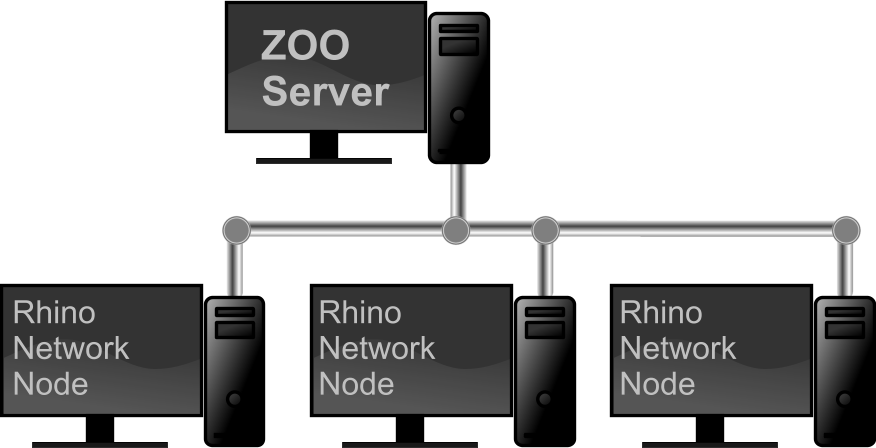
- Choose one Windows computer on your network to host the LAN Zoo utility.
- Download and install the LAN Zoo on that computer.
- Make sure TCP Port 80 is open in your firewall.
- Run ZooAdmin and add your Rhino license keys.
Setting up Rhino for Windows
- If Rhino is already installed, run Rhino and click Tools → Options → Licenses. Select your Rhino license and click Convert. Close and restart Rhino. During restart, select Use LAN Zoo and then specify the name of your Zoo server.
- When installing Rhino, select Use LAN Zoo and then specify the name of your Zoo server.
Setting up Rhino for Mac
More information and support
Deployment
Automating Installation of Rhino
Rhino for Mac Managed Distribution
Rhino and Desktop Virtualization
Troubleshooting
Knowledgebase
zoo/home.txt · Last modified: 2026/05/28 by dale

